

Deploying to Vercel
Set up your project
- New project
- Existing Next.js project
Start from the template:
Create your Restate + Vercel repository
Secure your service with request identity validation
Vercel deployments are public HTTP endpoints. Secure your service with request identity validation so that it only accepts requests from the Restate environment you trust.Clone the project locally and configure the key in your Restate SDK endpoint before deploying.The public key is not secret, so it is safe to include it directly in your service source code or configuration files.
- Restate Cloud / BYOC
- Restate OSS
 Restate Cloud / BYOC
 Restate OSS
Restate Cloud and BYOC environments create and manage the request identity key for you.Copy the environment’s public key from Developers > Security > HTTP endpoints in the Restate Cloud UI.
Deploy your project to Vercel
Create and deploy the project from the Vercel dashboard.For Restate to push requests to the Vercel project, you need Vercel Generated URLs to be accessible by Restate.
You have two alternatives:
- Disable Vercel Authentication for the project, making its URLs publicly accessible.
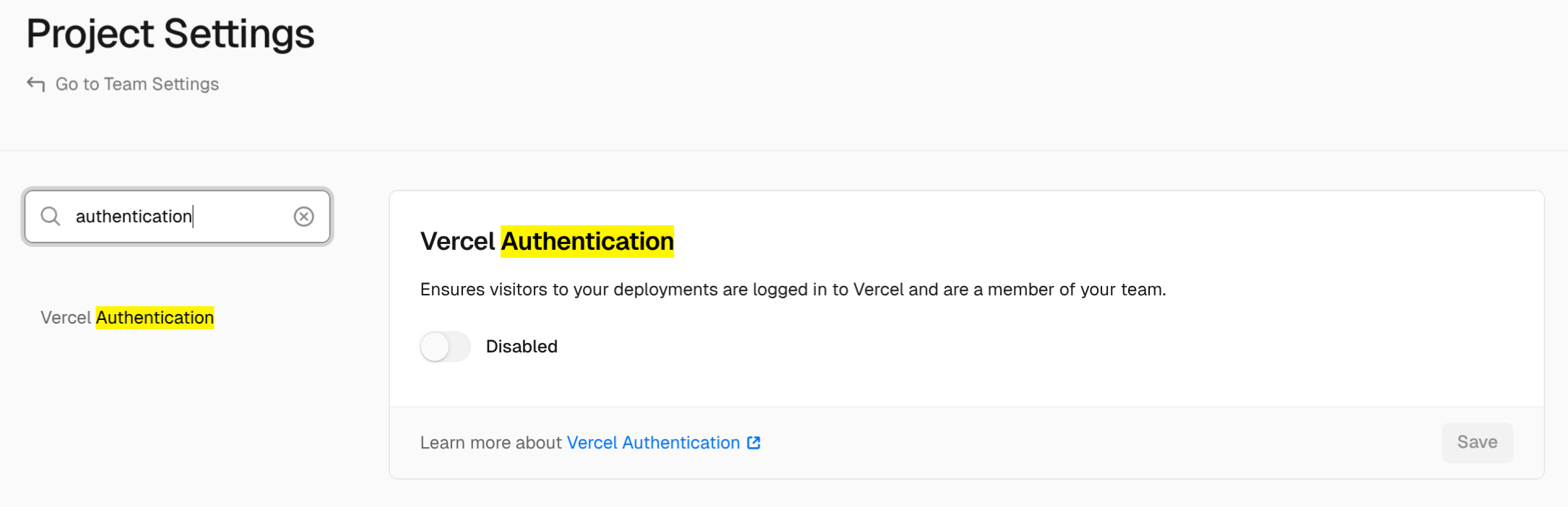
- Enable Protection Bypass for Automation. This makes the URLs accessible only if the
x-vercel-protection-bypassheader is provided with the right value.
Get your Commit URL
Go to your Vercel deployment and copy the Commit URL (highlighted in black on the screenshot).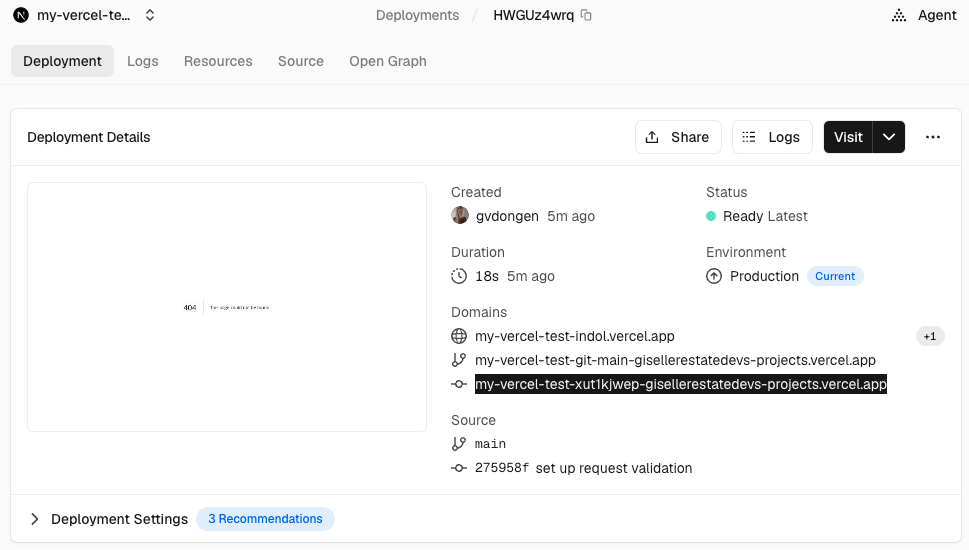
Register the service to Restate
- Restate Cloud / BYOC
- Restate OSS
Register the service with Restate via the UI:
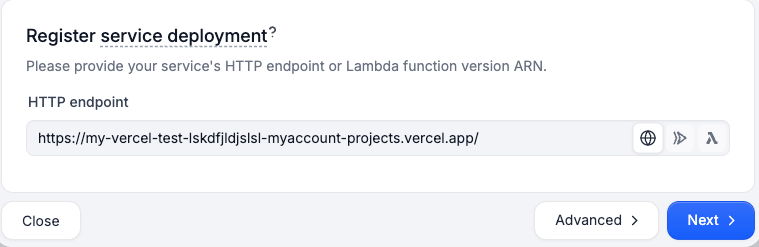
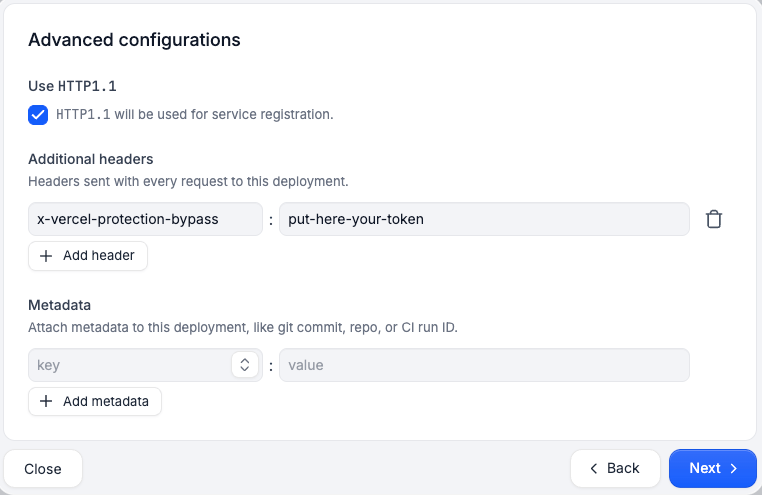
Send your first request
- Restate Cloud / BYOC
- Restate OSS
You’re set up! Go to the Overview page > Greeter > Playground and start sending requests to your service.
CI/CD Automation
You can set up automation to automatically register new Restate service versions every time a Vercel deployment gets promoted.- Restate Cloud / BYOC
- Restate OSS
.github/workflows/deploy.yml
-
RESTATE_ADMIN_URL: The Admin URL. You can find it in Developers > Admin URL -
RESTATE_AUTH_TOKEN: Your Restate Cloud or BYOC auth token. To get one, go to Developers > API Keys > Create API Key, and make sure to select Admin for the roleView
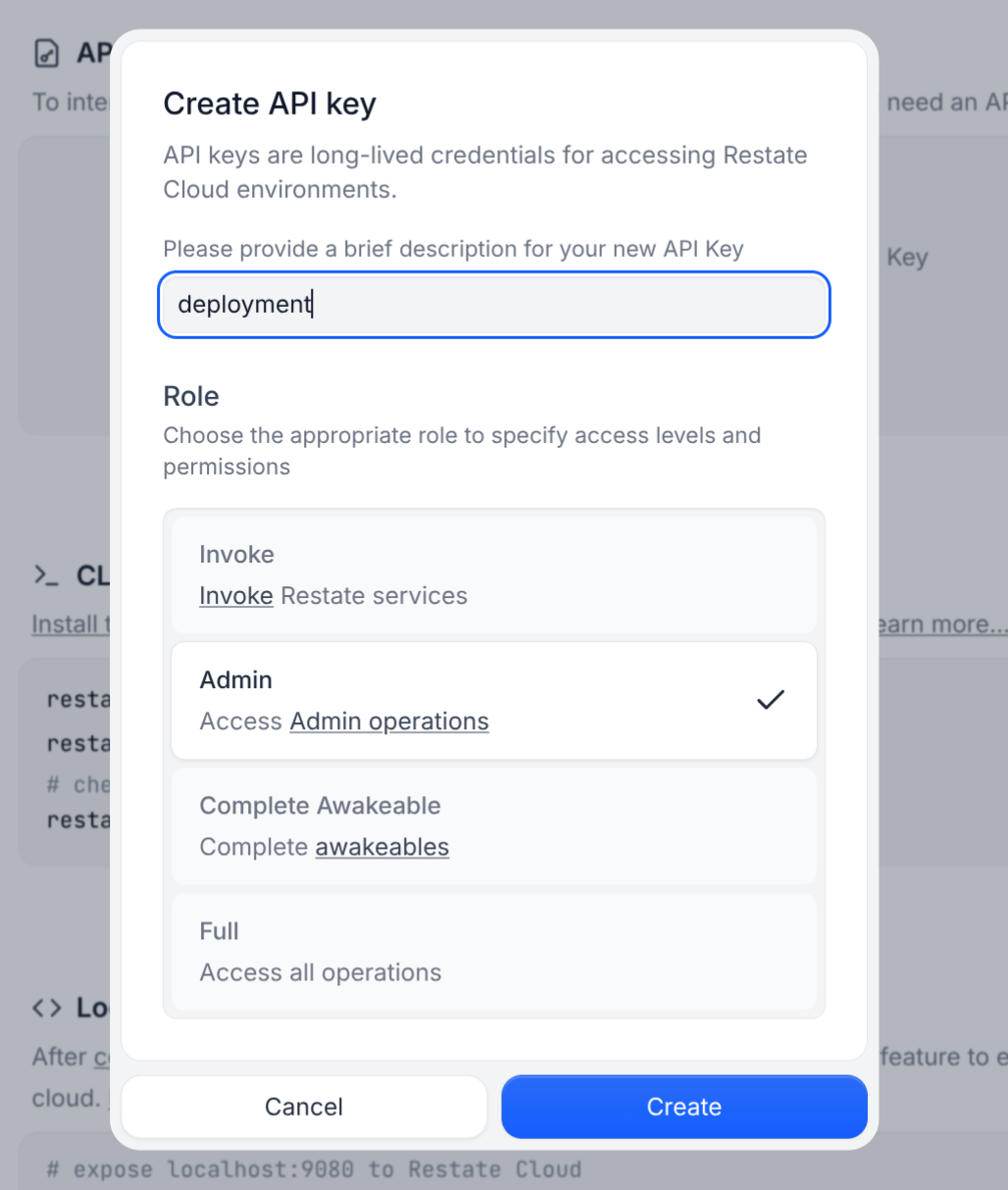
-
VERCEL_PROTECTION_BYPASS_TOKEN: Only if you set up the Protection Bypass for Automation as described above.