

9080.
Docker
You can run your Restate service in a Docker container. Most of the Restate service templates come with aDockerfile that you can use to build a Docker image for your service.
Connecting services with public endpoints
If your service has a public HTTPS endpoint, secure it with request identity validation so that it only accepts requests from the Restate environment you trust. First, obtain the environment’s request identity public key:- Restate Cloud / BYOC
- Restate OSS
 Restate Cloud / BYOC
 Restate OSS
Restate Cloud and BYOC environments create and manage the request identity key for you.Copy the environment’s public key from Developers > Security > HTTP endpoints in the Restate Cloud UI.
Connecting private services to Restate Cloud or BYOC
Restate Cloud must be able to send discovery and invocation requests to your service. For a service in a private network, a tunnel establishes an outbound connection to Restate Cloud, so you do not need to expose an inbound endpoint. The tunnel also acts as an authenticating proxy, making it appear as if your Restate Cloud environment sits inside your private network. That means you can use native access control mechanisms, such as VPC security groups and Kubernetes network policies, to manage access to your Cloud environment. It also lets you control connections from the Cloud environment into the rest of your network, by restricting which internal services the tunnel client is allowed to reach. Choose how you want to run the tunnel client:
We recommend the in-process tunnel client for TypeScript and Go because it removes the extra network hop. Use the standalone tunnel client for another SDK or when you prefer to operate the client independently.
How does the in-process tunnel client work?
How does the in-process tunnel client work?
Each service process maintains its own outbound connection to Restate Cloud. Invocations arrive directly at the SDK handler, without a standalone tunnel client or HTTP listener in the invocation path. Replicas of the same deployment use the same tunnel name, which lets Restate Cloud balance requests across their connections.
How does the standalone tunnel client work?
How does the standalone tunnel client work?
You run the tunnel client yourself, beside your service or elsewhere in the same private network, and it forwards invocations to your service over its normal HTTP endpoint.The tunnel client opens an outbound connection to Restate Cloud, so your service needs no public ingress and no inbound ports.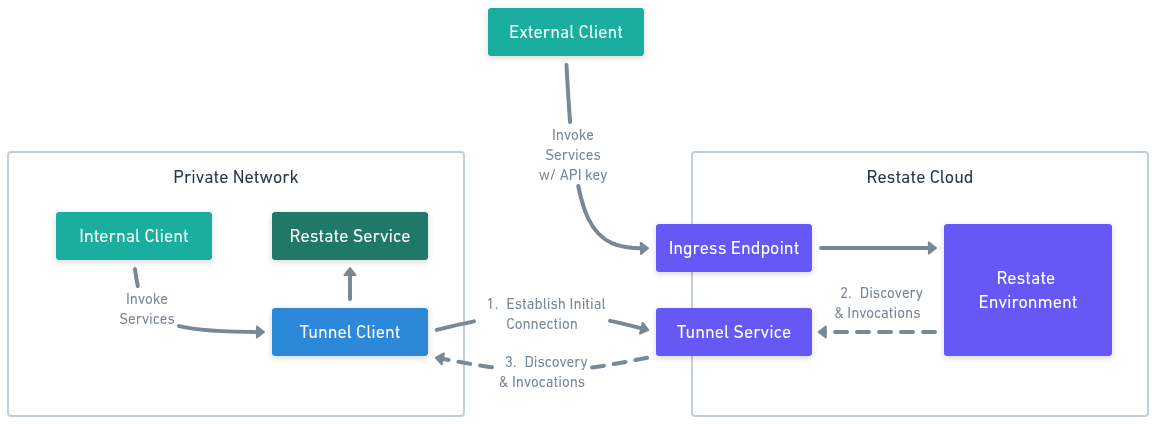
- Connect. The tunnel client resolves the tunnel servers for your region and dials out to them, authenticating with your API key. It holds one connection per tunnel server and redials on its own if a connection drops.
- Register. Each connection is keyed by your environment and tunnel name. The deployment URL you register encodes both, plus the address the tunnel client should forward to.
- Invoke. Restate Cloud sends discovery and invocation requests for that deployment to the tunnel server, which streams them down one of the connections registered under that tunnel name.
- Forward. The tunnel client forwards each request to your service’s endpoint inside your network, and responses stream back over the same connection.
- In-process Tunnel
- Standalone Tunnel
Use the in-process tunnel client to connect your TypeScript or Go service directly to Restate Cloud.
1
Develop your service
Develop your service with your preferred Restate SDK. If you are starting a new service, follow the quickstart.
2
Create the tunnel credentials
In the Restate Cloud UI:Give each distinct deployment its own DNS friendly tunnel name. Replicas of the same deployment should share the same name. For a Restate managed region, use a value such as
- Open Developers > API Keys and create an API key with the Full role.
- Open Developers > Security > HTTP endpoints and copy the signing public key.
- Copy the environment ID and region identifier shown in the UI.
eu or us. For BYOC, use the region identifier shown in the UI.3
Run the tunnel client
Install the tunnel package for your SDK:Replace the normal SDK listener with the tunnel client:The TypeScript client exposes the deployment URL through
connection.deploymentUrl. The Go client logs it after connecting.Request identity validation ensures that your service only accepts requests signed by the Restate Cloud or BYOC environment you trust.
The tunnel SDK validates request identity with the signing public key. The public key is not secret, so it is safe to include it directly in your service source code or configuration files.In-process tunnel clients are currently available for TypeScript and Go. Support for the other Restate SDKs is coming.
4
Register the service
Copy the deployment URL printed when the tunnel connects and register it:
Running services behind a load balancer
To spread load across multiple instances of services and higher availability, we recommend using a load balancer. The Restate server does not currently support multiple endpoints for a single deployment. When running an L7 load balancer such AWS Application Load Balancer, be sure to configure it to support HTTP/2 as this enables Restate to use the more efficient bi-directional service invocation protocol.Using nginx load balancer
Using nginx load balancer
When using
nginx as the load balancer, you must use the grpc_pass directive instead of proxy_pass to forward requests to your services. The proxy_pass directive only speaks HTTP/1.1 to the upstream, which downgrades the connection and prevents Restate from using the bidirectional protocol. The grpc_pass directive keeps HTTP/2 end-to-end. You also need http2 on; on the listener so that nginx accepts HTTP/2 from Restate.Expandable nginx.conf