> ## Documentation Index
> Fetch the complete documentation index at: https://restate-6d46e1dc-cloud-docs.mintlify.site/llms.txt
> Use this file to discover all available pages before exploring further.

# Vercel

> Run your TypeScript services on Vercel

Deploy your Restate services on Vercel.
This guide covers project configuration, service registration, and security setup.

<Tip>
  Follow the [quickstart](/quickstart) to try Next.js and Restate locally.
</Tip>

## Deploying to Vercel

<Steps titleSize="h3">
  <Step title={"Set up your project"}>
    <Tabs>
      <Tab title="New project">
        Start from the [template](https://github.com/restatedev/vercel-template):

        <Card title="Create your Restate + Vercel repository" icon="github" href="https://github.com/new?template_name=vercel-template&template_owner=restatedev" arrow="true" horizontal />
      </Tab>

      <Tab title="Existing Next.js project">
        Create a `fetch` endpoint, providing the services:

        ```typescript {"CODE_LOAD::https://raw.githubusercontent.com/restatedev/examples/refs/heads/main/typescript/templates/vercel/src/restate/serve.ts"}  theme={null}
        import * as restate from "@restatedev/restate-sdk/fetch";
        import { greeter } from "@/restate/greeter";

        // Create the Restate endpoint. 
        // Here you need to register your services
        const endpoint = restate.createEndpointHandler({ services: [greeter] });

        // Adapt it to Next.js route handlers
        export const serve = () => {
          return {
            POST: (req: Request) => endpoint(req),
            GET: (req: Request) => endpoint(req),
          };
        };
        ```

        And expose the endpoint in a Next.js parameterized route, e.g. `/restate/[[...services]]`:

        ```typescript {"CODE_LOAD::https://raw.githubusercontent.com/restatedev/examples/refs/heads/main/typescript/templates/vercel/src/app/restate/%5B%5B...services%5D%5D/route.ts"}  theme={null}
        import { serve } from "@/restate/serve";

        // This is the route that exposes the Restate services.
        // You can register it to Restate using /restate subpath (check the README)
        // To call it, open Restate > Overview > Greeter > Playground
        export const { GET, POST } = serve();
        ```
      </Tab>
    </Tabs>
  </Step>

  <Step title={"Secure your service with request identity validation"}>
    Vercel deployments are public HTTP endpoints. Secure your service with request identity validation so that it only accepts requests from the Restate environment you trust.

    <Tabs>
      <Tab title={"Restate Cloud / BYOC"} icon={"/logo/restate-cloud-mini.svg"}>
        Restate Cloud and BYOC environments create and manage the request identity key for you.

        Copy the environment's public key from [**Developers > Security > HTTP endpoints**](https://cloud.restate.dev/to/developers/integration#http-endpoints) in the Restate Cloud UI.
      </Tab>

      <Tab title={"Restate OSS"} icon={"/logo/restate-mini.svg"}>
        Request identity uses an ED25519 key pair. Give the private key to Restate so it can sign requests, and give the public key to your services so they can verify those signatures.

        Choose one of the following ways to generate the keys:

        <AccordionGroup>
          <Accordion title="Option 1: Let Restate output the public key">
            1. Generate the private key:

            ```bash theme={null}
            openssl genpkey -algorithm ed25519 -outform pem -out private.pem
            ```

            2. Provide its path to Restate on startup:

            ```bash theme={null}
            export RESTATE_REQUEST_IDENTITY_PRIVATE_KEY_PEM_FILE=private.pem
            ```

            3. Start Restate and copy the corresponding public key from the startup log. Restate prints it in the compact format expected by the SDK:

            ```log theme={null}
            INFO restate_service_client::request_identity::v1
            Loaded request identity key
            kid: "publickeyv1_w7YHemBctH5Ck2nQRQ47iBBqhNHy4FV7t2Usbye2A6f"
            path: private.pem
            ```
          </Accordion>

          <Accordion title="Option 2: Generate both key files beforehand">
            Run this script to generate `private.pem` and write the corresponding `publickeyv1_...` value to a `public-key` file before starting Restate:

            <Tabs sync={false}>
              <Tab title="macOS" icon="apple">
                Install OpenSSL 3 with Homebrew, then run the script:

                ```bash theme={null}
                brew install openssl@3
                ```

                ```shell expandable generate.sh theme={null}
                #!/usr/bin/env bash
                set -euo pipefail

                openssl_bin="$(brew --prefix openssl@3)/bin/openssl"

                # generate private key
                "$openssl_bin" genpkey -algorithm ed25519 -outform pem -out private.pem
                echo "Wrote private key to private.pem"

                # encode public key
                encoded=$("$openssl_bin" pkey -in private.pem -pubout -outform DER 2>/dev/null |
                tail -c +13 |
                od -An -v -tu1 |
                awk '
                BEGIN {
                  alphabet = "123456789ABCDEFGHJKLMNPQRSTUVWXYZabcdefghijkmnopqrstuvwxyz"
                  leading = 1
                }
                {
                  for (i = 1; i <= NF; i++) {
                    byte = $i
                    if (leading && byte == 0) {
                      zeroes++
                      continue
                    }
                    leading = 0
                    carry = byte
                    for (j = 0; j < digit_count; j++) {
                      carry += digits[j] * 256
                      digits[j] = carry % 58
                      carry = int(carry / 58)
                    }
                    while (carry > 0) {
                      digits[digit_count++] = carry % 58
                      carry = int(carry / 58)
                    }
                  }
                }
                END {
                  for (i = 0; i < zeroes; i++) printf "1"
                  for (i = digit_count - 1; i >= 0; i--) {
                    printf "%s", substr(alphabet, digits[i] + 1, 1)
                  }
                }')

                echo -n "publickeyv1_${encoded}" > public-key
                echo "Wrote publickeyv1_${encoded} to public-key"
                ```
              </Tab>

              <Tab title="Linux" icon="linux">
                This script requires Bash, OpenSSL, `awk`, and GNU Coreutils:

                ```shell expandable generate.sh theme={null}
                #!/usr/bin/env bash
                set -euo pipefail

                # generate private key
                openssl genpkey -algorithm ed25519 -outform pem -out private.pem
                echo "Wrote private key to private.pem"

                base58_chars="123456789ABCDEFGHJKLMNPQRSTUVWXYZabcdefghijkmnopqrstuvwxyz"
                # encode public key
                encoded=$(openssl ec -in private.pem -inform pem -pubout -outform der -out /dev/stdout 2>/dev/null |
                tail -c +13 |
                basenc --base16 "${1:-/dev/stdin}" -w0 |
                if
                read
                [[ $REPLY =~ ^((00)*)(([[:xdigit:]]{2})*) ]]
                echo -n "${BASH_REMATCH[1]//00/1}" # leading 0s -> 1
                (( ${#BASH_REMATCH[3]} > 0 ))
                then
                dc -e "16i0${BASH_REMATCH[3]^^} Ai[58~rd0<x]dsxx+f" | # hex bytes to indexes into the char string
                while read -r
                do echo -n "${base58_chars:REPLY:1}"
                done
                fi)

                echo -n "publickeyv1_${encoded}" > public-key
                echo "Wrote publickeyv1_${encoded} to public-key"
                ```
              </Tab>
            </Tabs>
          </Accordion>
        </AccordionGroup>
      </Tab>
    </Tabs>

    Clone the project locally and configure the key in your Restate SDK endpoint before deploying.

    ```typescript {"CODE_LOAD::ts/src/develop/serving_identity_serverless.ts#identity"} theme={null}
    const handler = restate.createEndpointHandler({
      services: [myService],
      identityKeys: ["publickeyv1_w7YHemBctH5Ck2nQRQ47iBBqhNHy4FV7t2Usbye2A6f"],
    });
    ```

    The public key is not secret, so it is safe to include it directly in your service source code or configuration files.
  </Step>

  <Step title={"Deploy your project to Vercel"}>
    Create and deploy the project from [the Vercel dashboard](https://vercel.com/new).

    For Restate to push requests to the Vercel project, you need Vercel Generated URLs to be accessible by Restate.
    You have two alternatives:

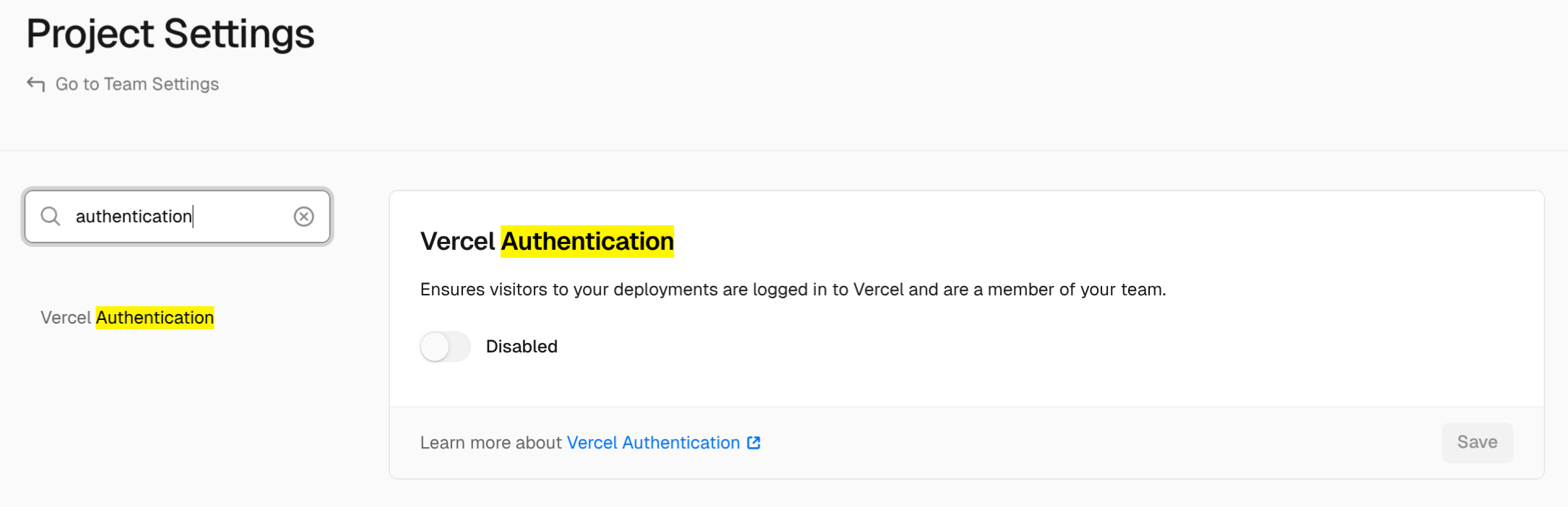
    * Disable [Vercel Authentication](https://vercel.com/docs/security/deployment-protection/methods-to-protect-deployments/vercel-authentication) for the project, making its URLs publicly accessible.
          <img src="https://mintcdn.com/restate-6d46e1dc-cloud-docs/G3yDE3RlKqX3D28h/img/services/deploy/vercel-disable-authentication.png?fit=max&auto=format&n=G3yDE3RlKqX3D28h&q=85&s=387bf2f08d039f2909a68d5486fed79f" alt="Vercel Authentication" width="2171" height="702" data-path="img/services/deploy/vercel-disable-authentication.png" />
    * Enable [Protection Bypass for Automation](https://vercel.com/docs/deployment-protection/methods-to-bypass-deployment-protection/protection-bypass-automation). This makes the URLs accessible only if the `x-vercel-protection-bypass` header is provided with the right value.
  </Step>

  <Step title={"Get your Commit URL"}>
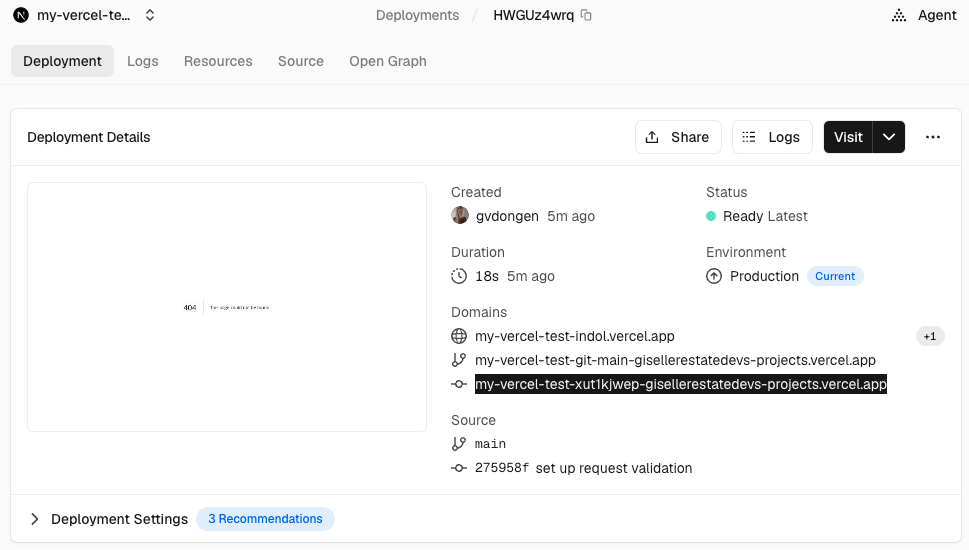
    Go to your Vercel deployment and copy the [Commit URL](https://vercel.com/docs/deployments/generated-urls#generated-from-git) (highlighted in black on the screenshot).

    <Frame>
      <img src="https://mintcdn.com/restate-6d46e1dc-cloud-docs/gyeA88vEecWsxlVJ/img/services/deploy/vercel-commit-url.png?fit=max&auto=format&n=gyeA88vEecWsxlVJ&q=85&s=7ea6021cdbd811fce965c7a8fbabecc8" alt="Vercel Commit URL" width="969" height="550" data-path="img/services/deploy/vercel-commit-url.png" />
    </Frame>

    This lets that Restate address specific Vercel deployments, and handle [versioning](/services/versioning) for you.
  </Step>

  <Step title={"Register the service to Restate"}>
    <div className="hidden-tabs">
      <Tabs>
        <Tab title={"Restate Cloud / BYOC"} icon={"/logo/restate-cloud-mini.svg"}>
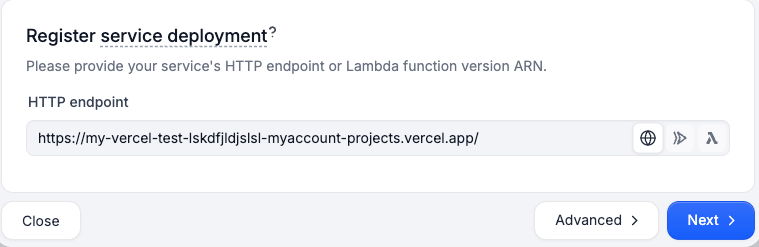
          Register the service with Restate [via the UI](https://cloud.restate.dev/to/overview?register-deployment=true):
        </Tab>

        <Tab title={"Restate OSS"} icon={"/logo/restate-mini.svg"}>
          Register the service with Restate [via the UI](http://localhost:9070/ui/overview?register-deployment=true):
        </Tab>
      </Tabs>
    </div>

    <Frame>
      <img src="https://mintcdn.com/restate-6d46e1dc-cloud-docs/gyeA88vEecWsxlVJ/img/services/deploy/vercel-register-url.png?fit=max&auto=format&n=gyeA88vEecWsxlVJ&q=85&s=828875f9c350fd68b3a958ca5cf48e37" alt="Vercel Registration" width="759" height="247" data-path="img/services/deploy/vercel-register-url.png" />
    </Frame>

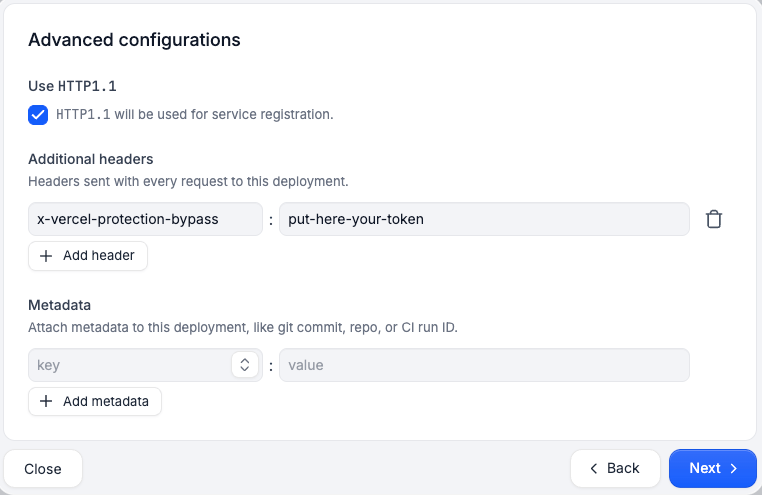
    In the advanced options, enable HTTP1.1 and optionally, set the header for the deployment protection bypass:
    <Frame>
      <img src="https://mintcdn.com/restate-6d46e1dc-cloud-docs/gyeA88vEecWsxlVJ/img/services/deploy/vercel-register-advanced.png?fit=max&auto=format&n=gyeA88vEecWsxlVJ&q=85&s=e6086bfd1f2a77b3f38f3cd104b21c9d" alt="Vercel Registration Advanced" width="762" height="495" data-path="img/services/deploy/vercel-register-advanced.png" />
    </Frame>

    <Tip>Read the [CICD Automation section](#ci%2Fcd-automation) to set up automatic service registration on push to main.</Tip>
  </Step>

  <Step title={"Send your first request"}>
    <div className="hidden-tabs">
      <Tabs>
        <Tab title={"Restate Cloud / BYOC"} icon={"/logo/restate-cloud-mini.svg"}>
          You're set up! Go to the [Overview page > Greeter > Playground](https://cloud.restate.dev/to/overview?servicePlayground=Greeter#/operations/greet) and start sending requests to your service.
        </Tab>

        <Tab title={"Restate OSS"} icon={"/logo/restate-mini.svg"}>
          You're set up! Go to the [Overview page > Greeter > Playground](http://localhost:9070/ui/overview?servicePlayground=Greeter#/operations/greet) and start sending requests to your service.
        </Tab>
      </Tabs>
    </div>
  </Step>
</Steps>

## CI/CD Automation

You can set up automation to automatically register new [Restate service versions](/services/versioning) every time a Vercel deployment gets promoted.

<Tip>
  If you've followed the steps above, then you already have the GitHub Actions workflow set up. All you need to do is to add the secrets below to your project.
</Tip>

<Tabs>
  <Tab title={"Restate Cloud / BYOC"} icon={"/logo/restate-cloud-mini.svg"}>
    ```yml .github/workflows/deploy.yml {"CODE_LOAD::https://raw.githubusercontent.com/restatedev/vercel-template/refs/heads/main/.github/workflows/deploy.yml?remove_comments"} theme={null}
    name: Register to Restate

    on:
      repository_dispatch:
        types:
          - 'vercel.deployment.promoted'
    jobs:
      deploy-to-restate:
        if: github.event_name == 'repository_dispatch'
        runs-on: ubuntu-latest
        steps:
          - name: Register Restate deployment
            env:
              RESTATE_ADMIN_URL: ${{ secrets.RESTATE_ADMIN_URL }}
              RESTATE_AUTH_TOKEN: ${{ secrets.RESTATE_AUTH_TOKEN }}

            run: |
              npx -y @restatedev/restate deployment register -y \
                --use-http1.1 \
                ${{ secrets.VERCEL_PROTECTION_BYPASS_TOKEN && format('--extra-header x-vercel-protection-bypass={0}', secrets.VERCEL_PROTECTION_BYPASS_TOKEN) }} \
                ${{ github.event.client_payload.url }}/restate
    ```

    This workflow needs the following [**GitHub Actions repository secrets**](https://docs.github.com/en/actions/how-tos/write-workflows/choose-what-workflows-do/use-secrets):

    * `RESTATE_ADMIN_URL`: The Admin URL. You can find it in [Developers > Admin URL](https://cloud.restate.dev/to/developers/integration#admin)

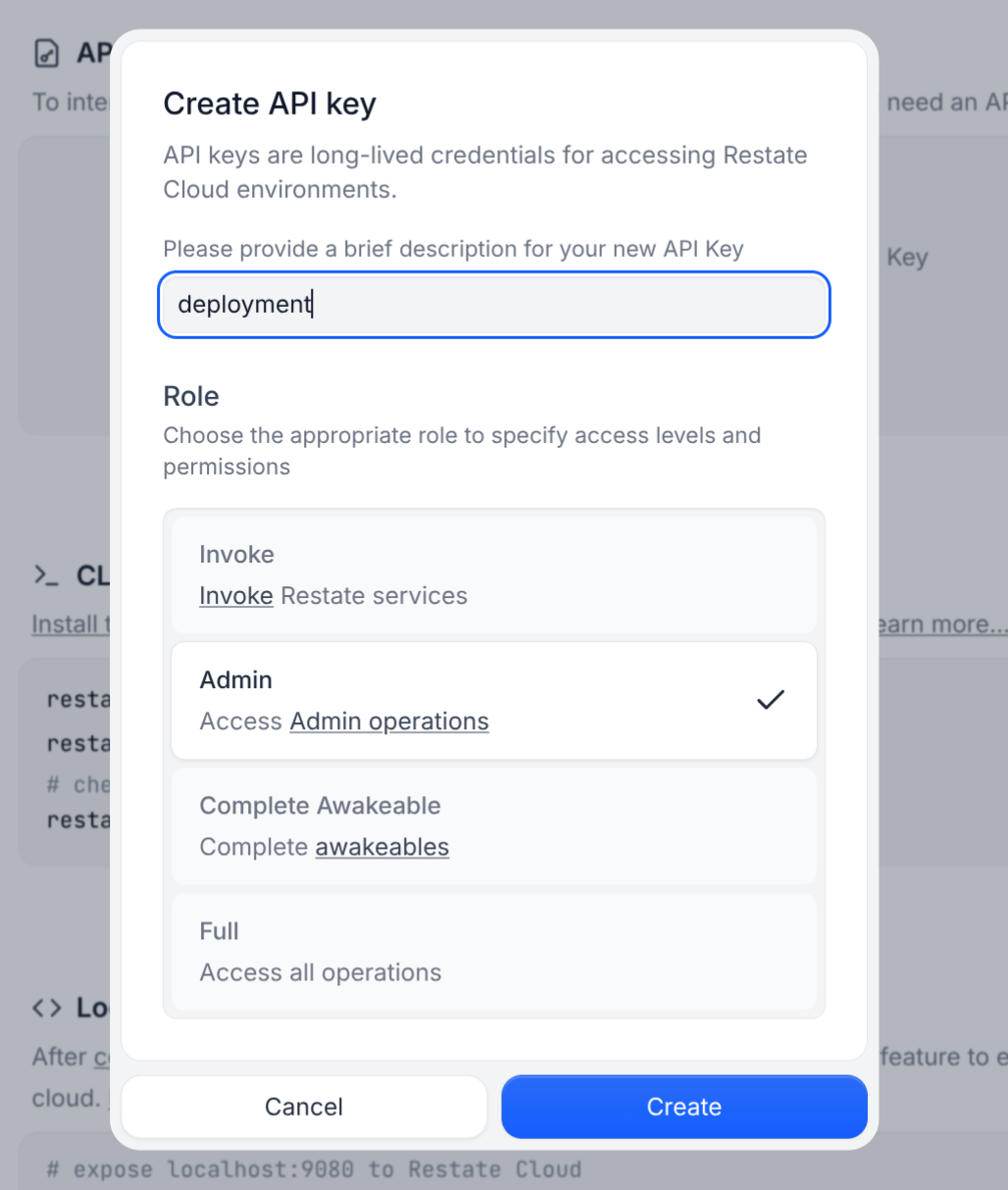
    * `RESTATE_AUTH_TOKEN`: Your Restate Cloud or BYOC auth token. To get one, go to [Developers > API Keys > Create API Key](https://cloud.restate.dev/to/developers/integration?createApiKey=true\&createApiKeyDescription=deployment-key\&createApiKeyRole=rst:role::AdminAccess), and make sure to select **Admin** for the role
          <Accordion title="View">
            <img src="https://mintcdn.com/restate-6d46e1dc-cloud-docs/G3yDE3RlKqX3D28h/img/services/deploy/deployment-token.png?fit=max&auto=format&n=G3yDE3RlKqX3D28h&q=85&s=3d8be70409f93176212839564318d8d8" alt="Token setup" width="50%" data-path="img/services/deploy/deployment-token.png" />
          </Accordion>

    * `VERCEL_PROTECTION_BYPASS_TOKEN`: Only if you set up the Protection Bypass for Automation as described above.
  </Tab>

  <Tab title={"Restate OSS"} icon={"/logo/restate-mini.svg"}>
    ```yml .github/workflows/deploy.yml {"CODE_LOAD::https://raw.githubusercontent.com/restatedev/vercel-template/refs/heads/main/.github/workflows/deploy.yml?remove_comments"} theme={null}
    name: Register to Restate

    on:
      repository_dispatch:
        types:
          - 'vercel.deployment.promoted'
    jobs:
      deploy-to-restate:
        if: github.event_name == 'repository_dispatch'
        runs-on: ubuntu-latest
        steps:
          - name: Register Restate deployment
            env:
              RESTATE_ADMIN_URL: ${{ secrets.RESTATE_ADMIN_URL }}
              RESTATE_AUTH_TOKEN: ${{ secrets.RESTATE_AUTH_TOKEN }}

            run: |
              npx -y @restatedev/restate deployment register -y \
                --use-http1.1 \
                ${{ secrets.VERCEL_PROTECTION_BYPASS_TOKEN && format('--extra-header x-vercel-protection-bypass={0}', secrets.VERCEL_PROTECTION_BYPASS_TOKEN) }} \
                ${{ github.event.client_payload.url }}/restate
    ```

    This workflow needs the following [**GitHub Actions repository secrets**](https://docs.github.com/en/actions/how-tos/write-workflows/choose-what-workflows-do/use-secrets):

    * `RESTATE_ADMIN_URL`: The URL through which GitHub Actions can reach your Restate Admin API
    * `RESTATE_AUTH_TOKEN`: Set this token if GitHub Actions reaches the Admin API through a reverse proxy that accepts bearer token authentication.
    * `VERCEL_PROTECTION_BYPASS_TOKEN`: Only if you set up the Protection Bypass for Automation as described above.
  </Tab>
</Tabs>
